Dash: SPLat’s New Programming Environment
Introducing Dash, SPLat’s new programming environment.
This program provides most of the features of SPLat32 without the instability. It’s faster, and adds many of the features of modern IDEs (Integrated Development Environments) such as Visual Studio.
In addition, it unlocks useful features such as 16-bit RAM addressing (up to 8192 bytes), an extra 64KB of combined program/NVEM0 space (up to 64KB of each), extended debugging capabilities, and more.
Note that this is a very different environment to the old SPLat32, but if you’re at all familiar with tools such as Visual Studio, it won’t be a massive learning curve.
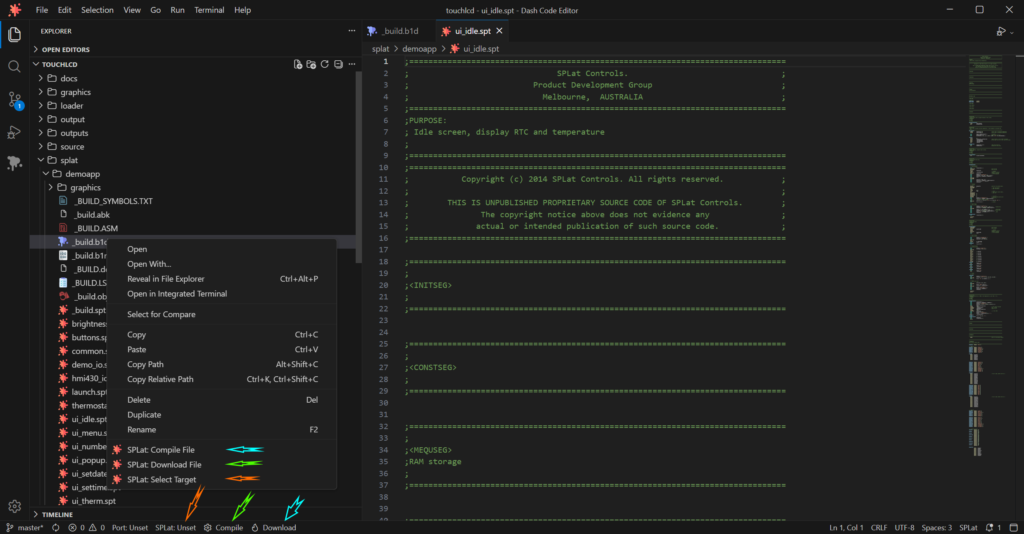
Note that a lot of functions are available via the right-click menu, but a few key functions such as “Select Target” (orange arrow), “Compile” (green arrow) and “Compile and Download” (cyan arrow) are also available as buttons on the bottom toolbar.
How to Use Dash
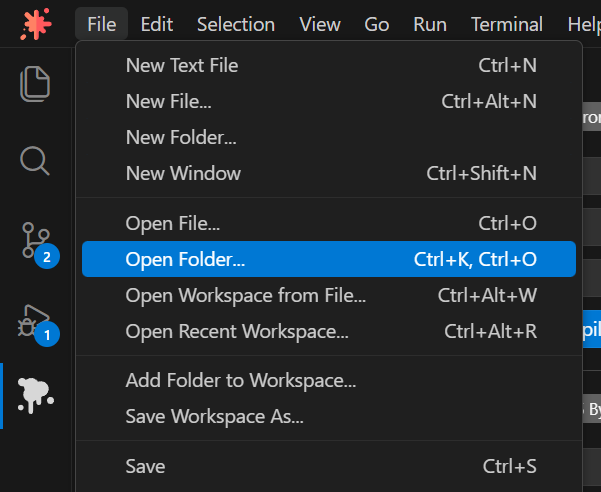
The first thing you’ll need to do after installing and opening Dash is to open the folder with the SPLat files.
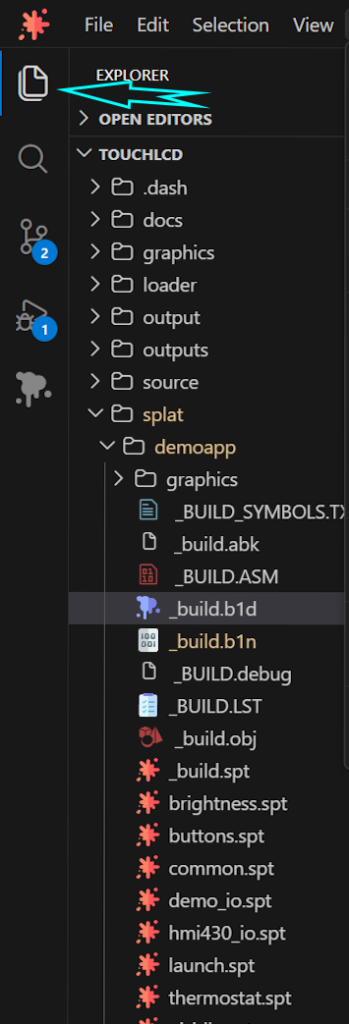
If you then click on the “Files” icon at the top of the left-hand toolbar, you’ll see a list of all the files in the folder. In the following image, I’ve opened the folder containing the files for the HMI430:
If you right-click on a build (.B1D) or SPLat Source (.SPT) file, one of the options is “Select Target”:
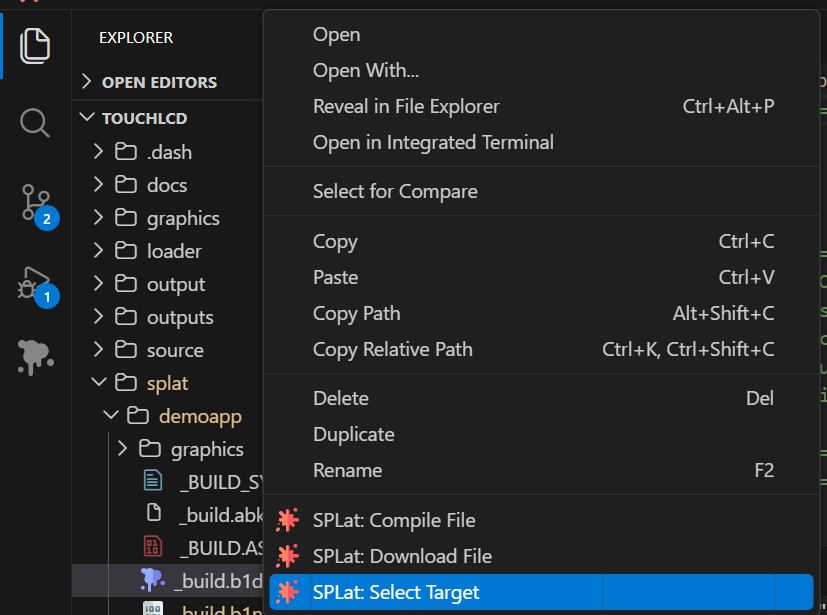
This makes the build file the active file for building the code. It’s a particularly useful option if you have multiple build files for different versions or options in the code.
Once you’ve selected the build file, the “Compile” button at the bottom of the page becomes useful:
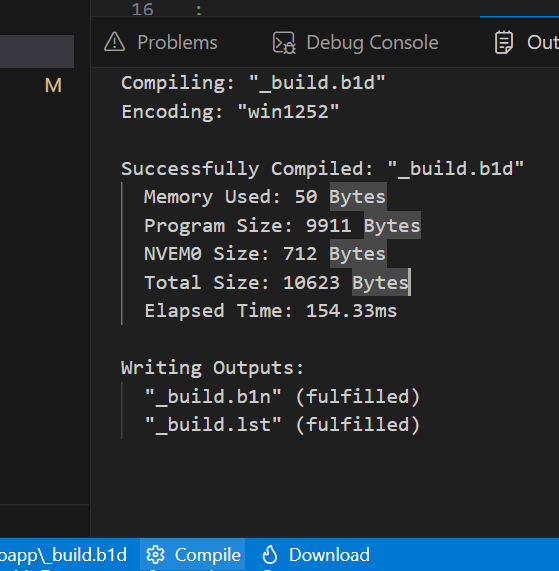
The “Download” button actually does a compilation first (which is usually so fast that it doesn’t matter) and then downloads: It’s the equivalent of SPLat/PC’s “Build and Download”.
Note that Dash automatically creates a binary (.B1N) file that you can download with SPLash. Alternatively, you can right-click it (or any other B1D file) from Dash and download it to your board directly.
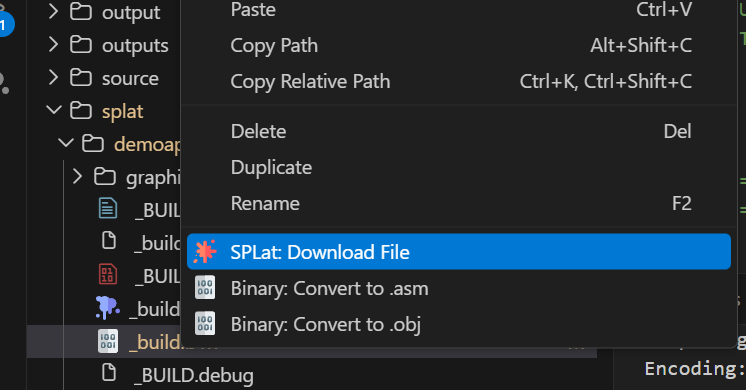
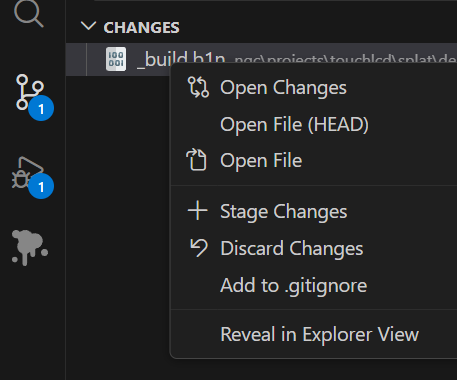
You can create new files, copy existing files, delete files, rename files, etc, all from within the Dash environment. If you have a version control system such as Git, you can even run Git commands from within Dash.
Once you have a file open, you can start editing. Dash provides live error checking, as well as suggested auto-completion. In the image below, I’ve started entering a label that’s a duplicate of an existing label:
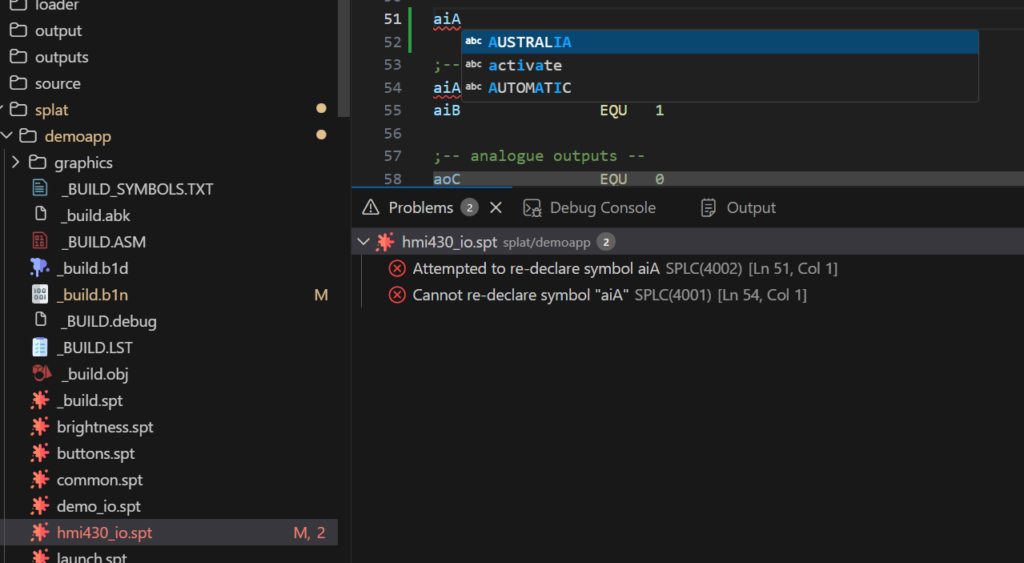
The “M” in the file listing shows that this file has been modified since the last update from our version control system.
The Debug (SPLat) pane has some useful features:
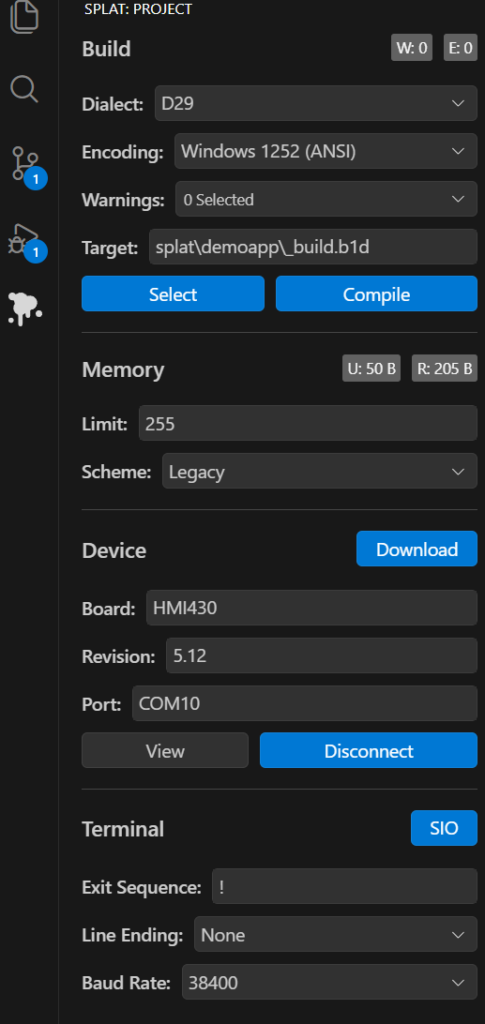
W:0 E:0 designates the number of warnings (W) and errors (E) in the current SPLat code.
Dialect enables you to select a different version of the SPLat language if you really want to. We recommend not changing this.
Encoding allows you to change how the computer saves the files. The default encoding matches the way SPLat/PC works, so it’s recommended if you have existing code for an HMI product.
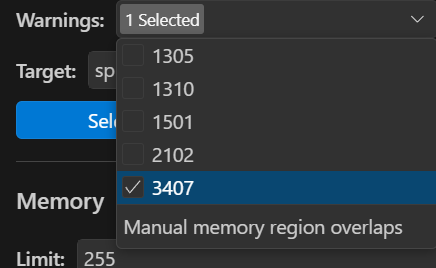
Warnings enables you to turn some selected compiler warnings on or off:
Target enables you to select a build or SPLat file (just like the “SPLat” button at the bottom of the page, or the Select Target right-click option).
Compile builds the selected file.
Under “Memory”, U:xxxB R:xxxB shows how many bytes of RAM are being used, and how much of the available RAM remains.
Limit is a particularly useful value. By default, this is 255. If you change this to a larger value you can enable 16-bit addressing. The maximum memory available on modern 32-bit machines is 8192 bytes, so this value should not go above 8191.
Scheme allows selection of different methods of allocating memory to variables.
Under “Device”, Download does a build and download of the code, as per the “Download” button.
Board tells you what sort of board the attached device reports as (if you’ve connected to a board). Note that many boards report as an HMI430, even if they’re not.
Revision tells you the firmware revision of the connected device.
Port tells you which port is selected. It does not allow you to change the port.
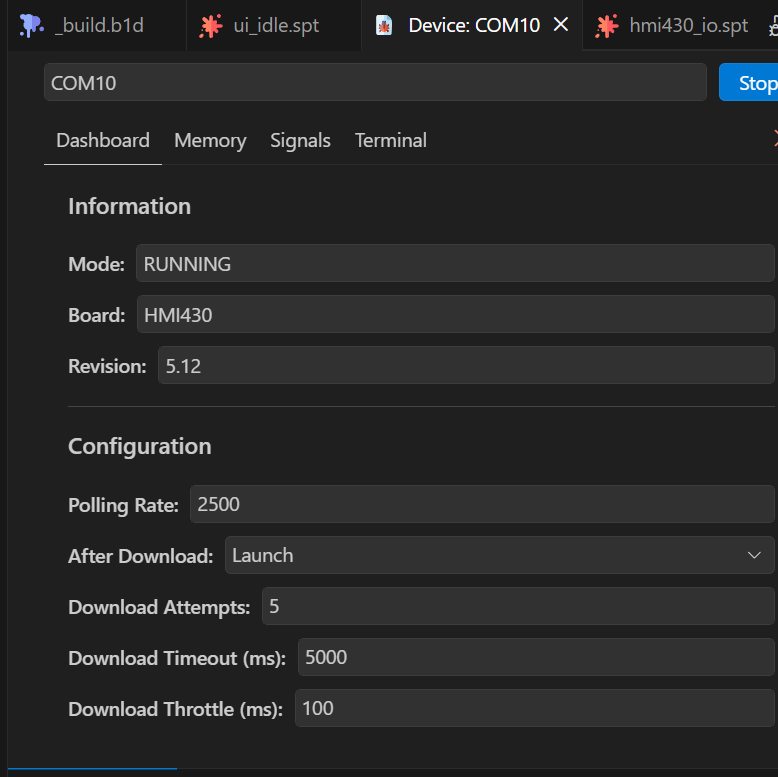
View opens the Device window, where you can view and change various parameters:
Disconnect does just that.
Under “Terminal”, SIO opens the port in serial terminal mode. This is very useful for debugging. You will need to Disconnect first.
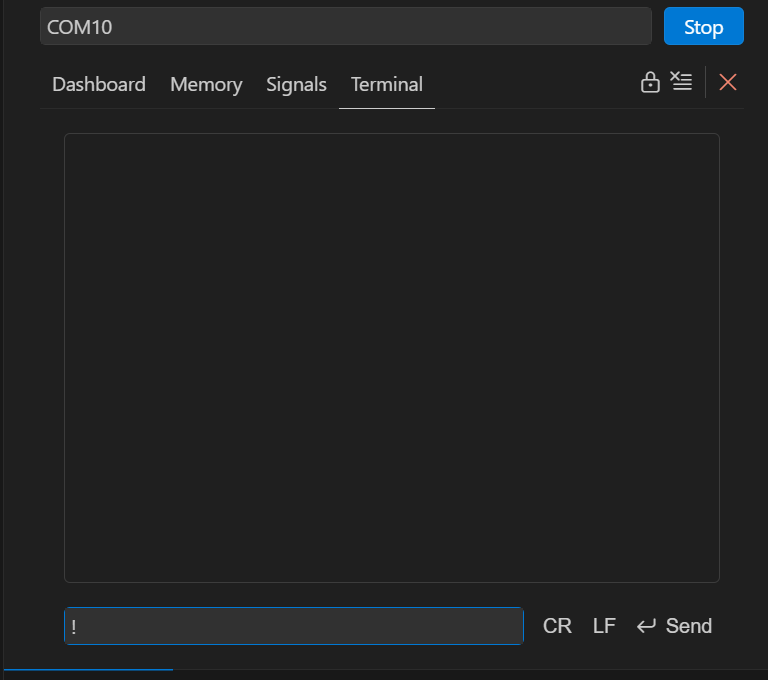
Note that you can enter strings in the box at the bottom and send (optionally with a Carriage Return – CR – and/or Line Feed – LF – appended).
Exit Sequence tells Dash what to send to the board when exiting from terminal mode.
Line Ending selects the characters to send at the end of the Exit Sequence.
Baud Rate allows selection of the serial data rate for the terminal.
ADVANCED OPTIONS
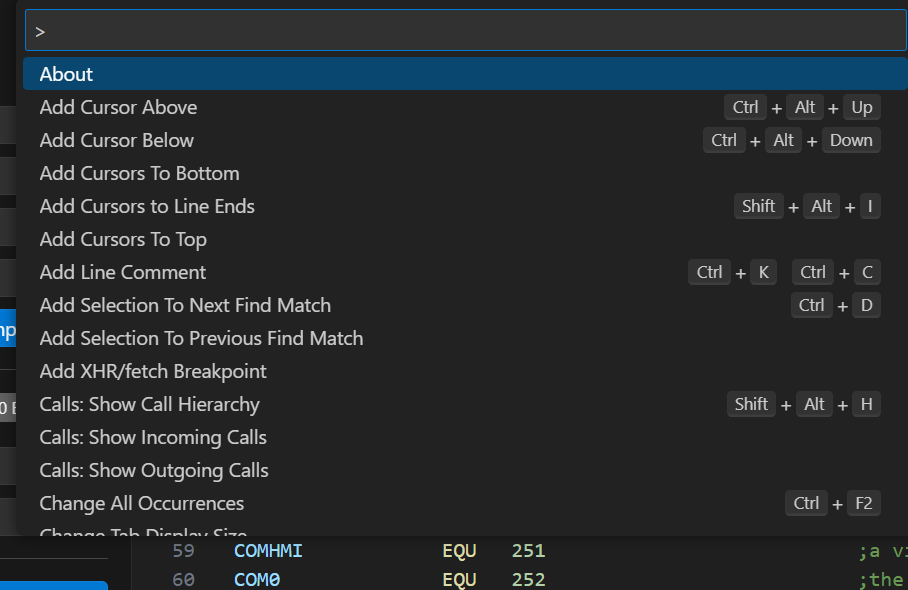
For advanced users, holding down “Ctrl-Shift-P” together gives an extensive, searchable list of available commands, which might (or might not) be useful:
WORKSPACES
Each folder you open is automatically stored in memory as a “Workspace”, but workspaces stored this way are referred to in the header simply by the name of the last directory. For the majority of our projects, that name is simply “splat”, which can get a bit confusing if you have multiple copies of Dash open.
Luckily, Dash gives you the option of saving a workspace with a meaningful name:
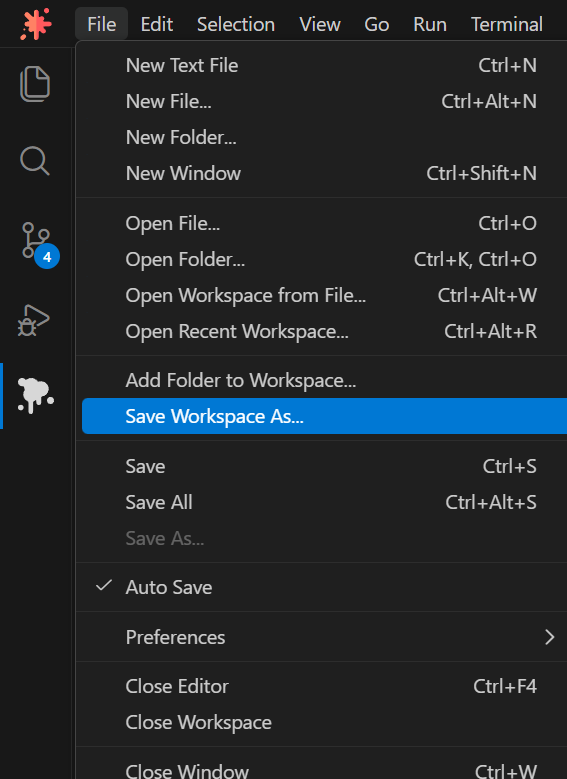
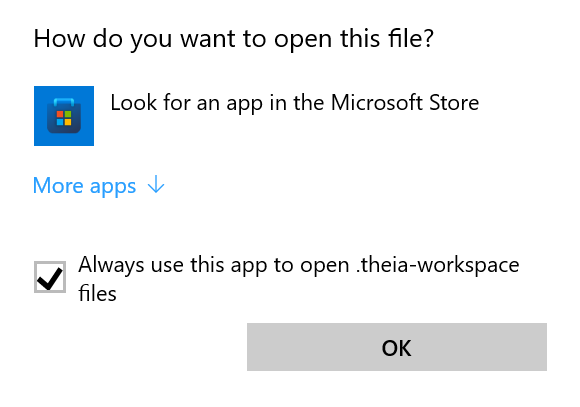
You can save it as a “Theia” workspace, or as a Visual Studio Code workspace (which – if you double-click it – should open in VS Code, with Dash as a plugin). Unfortunately, the default “Theia” workspace doesn’t by default have an application associated with it, so if you double-click it, you’ll see a “How do you want to open this file” dialogue box.
Here’s what you need to do:
- Check the “Always use this app…” checkbox and click the “More apps” button:
2. Scroll down the list to the bottom and select “Look for another app on this PC”:
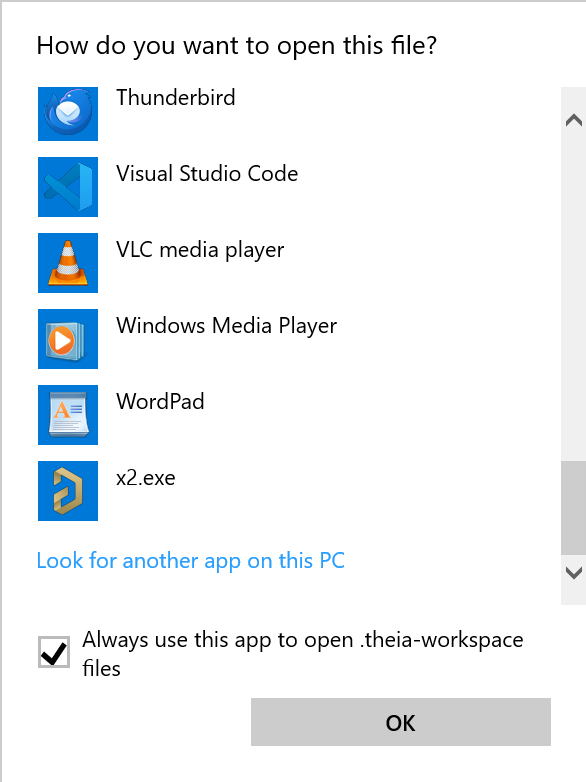
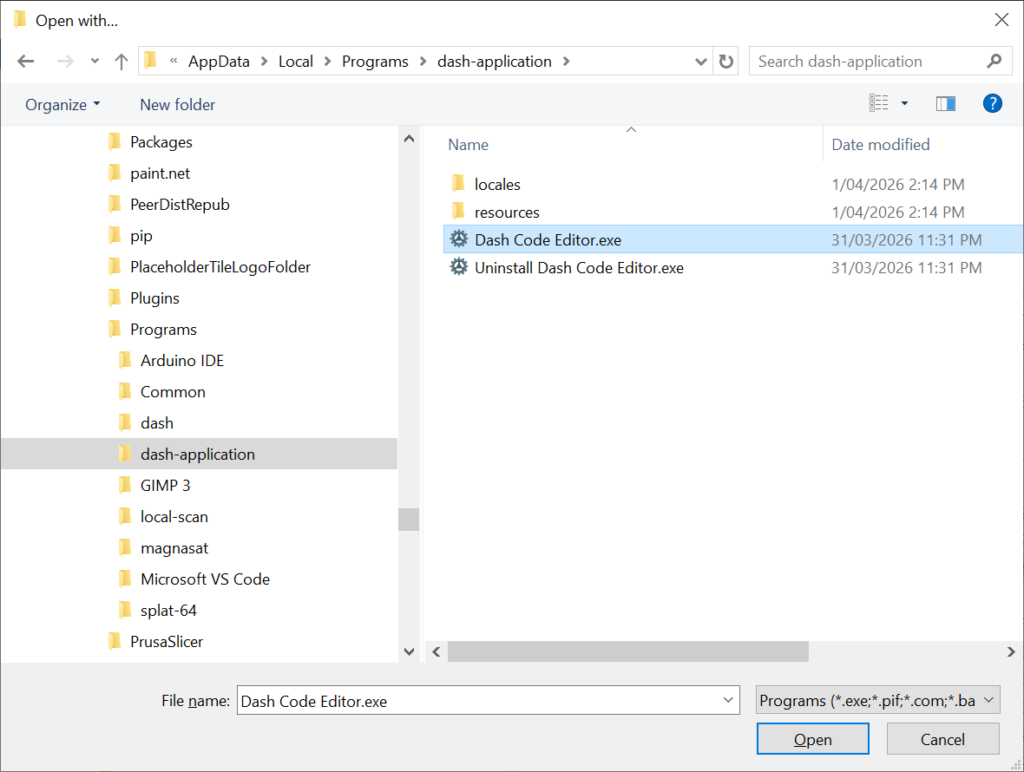
3. Navigate to “C:\Users\<your username>\AppData\Local\Programs\dash-application” and select “Dash Code Editor.exe”, then click “Open”.
…and you’re done.
If you’re not sure what you want, give us a call: +61 3 9773 5082